Free Image to Video AI Generator for Stunning Videos

Give still images expressive motion and turn a single photo into a video worth sharing. Create animated portraits, eye-catching product clips, and more — with no watermark.

1Upload an image
2Describe the motion
Be specific about movement and camera direction.0 / 20,000
3Video settings
Resolution
sec
5s10s
Generate audio

Audio is unavailable for this model.

Cost: 20 credits per second

Your uploads are private. Sign in to generate.

Need more credits?

Your Video

A little motion. A whole new story.

Upload an image, describe the motion, and your AI video will appear here.

Start with your favorite photo

Your recent videos are available in History for 24 hours.

AI Image to Video Generator Features

What image to video AI gives you, from upload to download.

The Motion Comes From Your Words

You write the motion yourself: one plain sentence of what should happen, and the clip is built from it — "the child makes a wish", "the family blows out the candles together". No menu to pick from — everyday words are enough. Change a word and a different clip comes back.

Describe It in a Sentence
One Photo Is the Whole Input

No reference clip, no second angle, no matching shot to line up. The photo already on your phone is the whole upload — one frame in, one sentence of motion, and image to video AI builds the clip from that alone. Something you shot for a different reason works here.

Start With One Photo

A Still Image That Breathes

A photo holds a single moment. Image to video AI lets that moment keep going — the stillness gives way to a few seconds of motion. Your uploaded photo becomes the starting point for a short animated clip, and nothing has to be re-staged or re-shot for it.

Bring the Frame to Life

No Watermark, HD Output

No watermark, and no second export to hunt for. No logo sits over the picture and no generator name is printed on the frame. The file stays HD, so the detail you shot is still there when it plays back. What lands in your downloads is the finished clip, ready to post or send to a client.

Download Without a Watermark

How to Turn an Image into a Video Clip

Three steps, and only one of them is typing — the rest is picking.

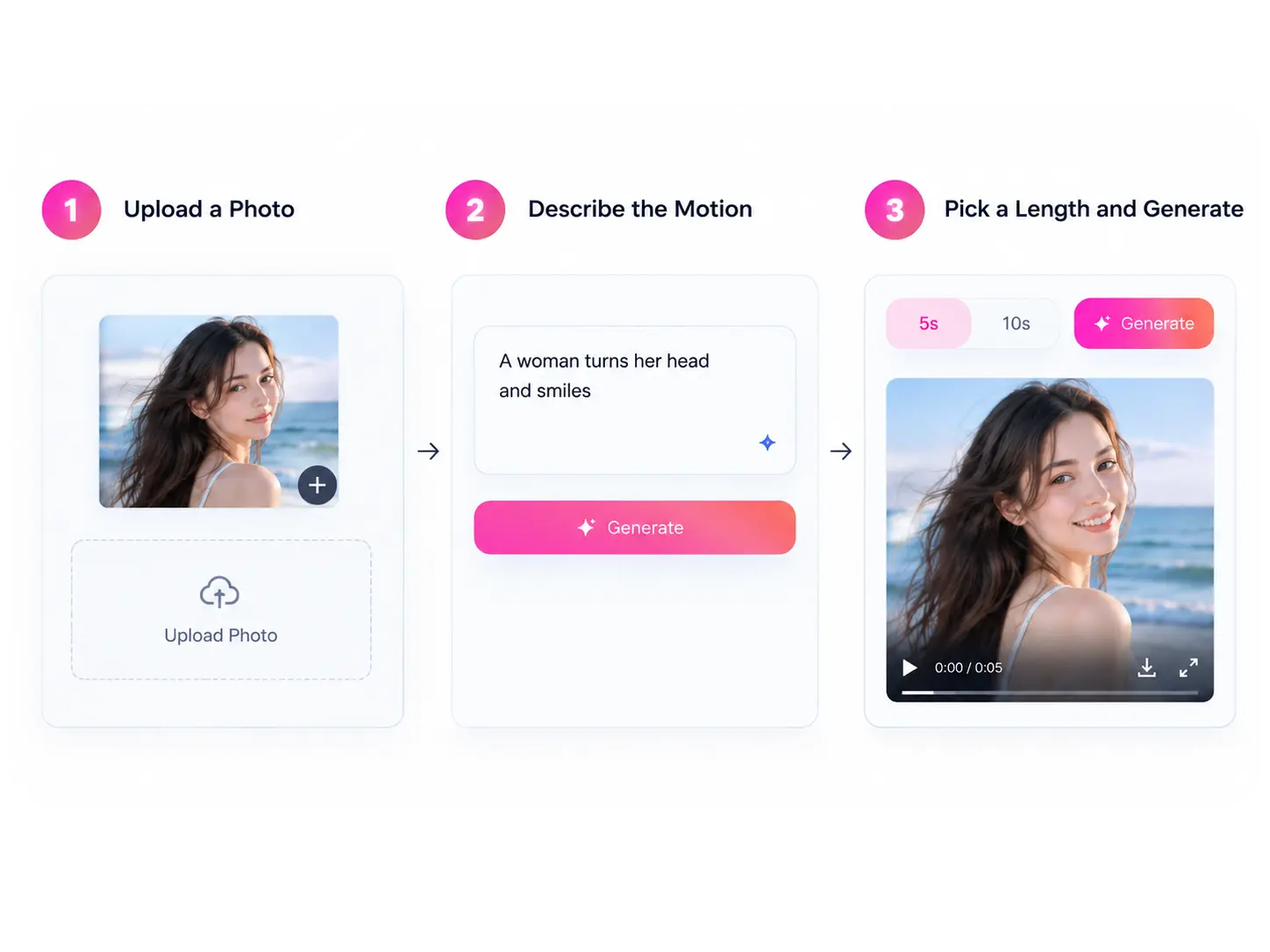
Three-step flow: upload a photo, describe the motion, pick a length
  1. 1

    Upload a Photo

    One image from your camera roll or your desktop. If the thing that should move is small in the frame, crop closer to it before you upload.

  2. 2

    Describe the Motion

    One sentence in the prompt box: who moves, and what they do. Image to video AI takes it from that line.

  3. 3

    Pick a Model and a Length

    Two choices before you generate: which model, and how long. When the AI image to video generator finishes, the clip is ready to download.

How to Write Image to Video AI Prompts

Four practical ways to write a more precise image to video prompt — and to steer the result. But even the same prompt on the same photo can give a different result.

Name the Motion, Not the Mood

A request that names no action leaves the model to choose what moves and how. Name the subject and describe one visible action instead. Too vague: "Make it move." More specific: "A woman's hair lifts in a breeze."

Give the Movement a Natural Sequence

When an action has a clear start and end, describe how it unfolds for image to video AI. Keep the sequence simple, not several unrelated things at once. "A paper boat floats along a gentle stream and drifts out of view."

Say What the Camera Does

Define how the camera moves. Unlike a fixed camera, a moving camera reveals more details and adds depth and dynamism to the scene. "The camera circles a rotating luxury car as light sweeps across its body."

Refine From What Came Back

Sometimes the result shows what the prompt left out. Add that detail instead of rewriting the whole line. First try: "A man turns his head." Refined: "A man slowly turns his head toward the window." Now the turn has a direction.

What You Can Create with Image to Video AI

One prompt, six very different photos — image to video AI asks the same question of each: what should move?

Portrait photo of a person, head turning slightly to one side

Portraits and Selfies

Photo to video AI starts with a portrait you have already taken. Describe a small movement — a turn of the head, a shift in posture, a glance to the side. Name it clearly, and if there is more than one, say what happens first so image to video AI has something to time the clip around.

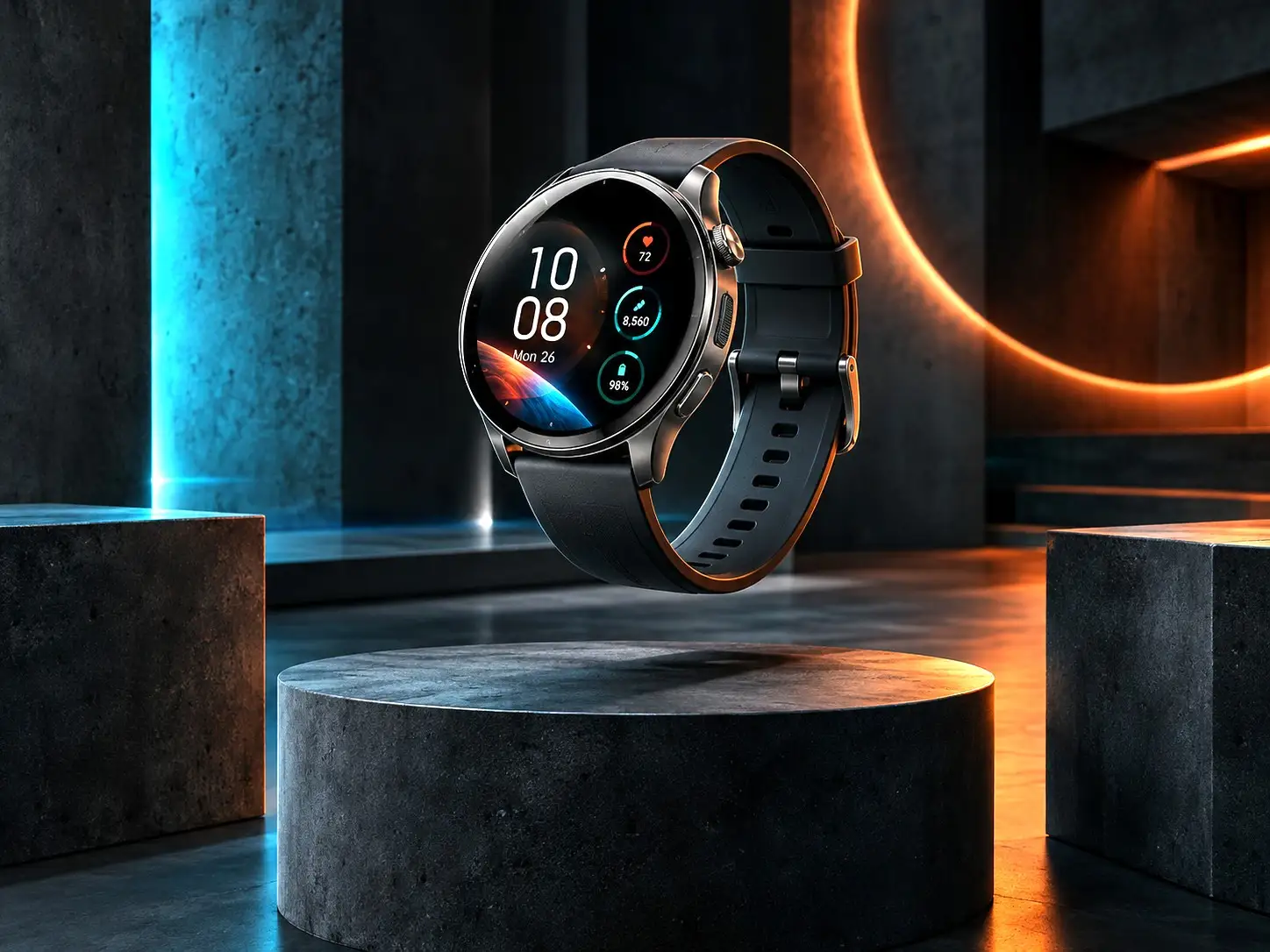
Product shot of a bottle on a plain surface, a slow drift across the label

Product Photos and Listings

A still from your listing page is enough. This is product photo to video AI without the studio — no turntable, no second shoot. Keep the framing you shot and let light do the moving: a highlight sliding across the surface, the shadow shifting under it, a hang of fabric settling.

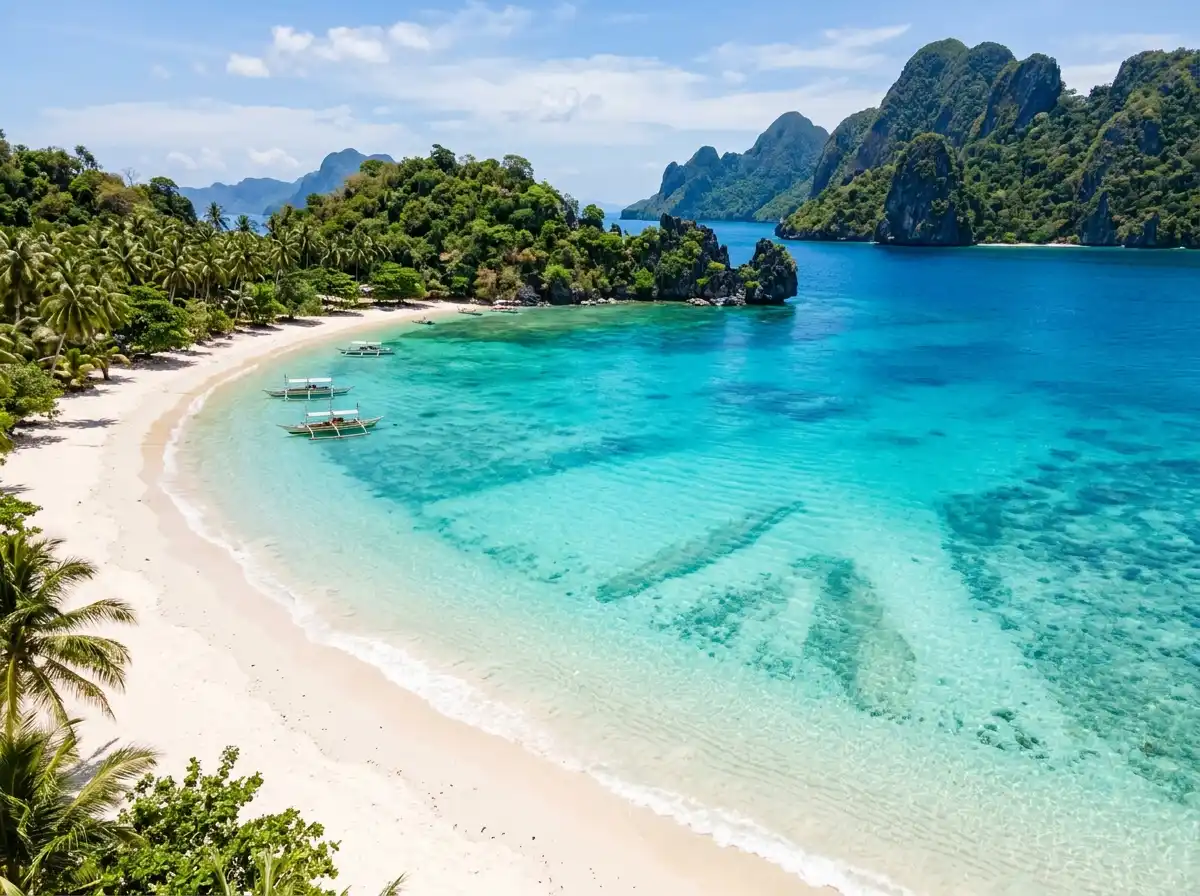
A lake under drifting cloud, water moving slowly toward the shore

Landscapes and Scenery

Drifting cloud, moving water, grass bending in a wind you can almost feel. A quiet, slow movement reads as intentional rather than as an effect, and wide shots leave plenty of room for one small change to register.

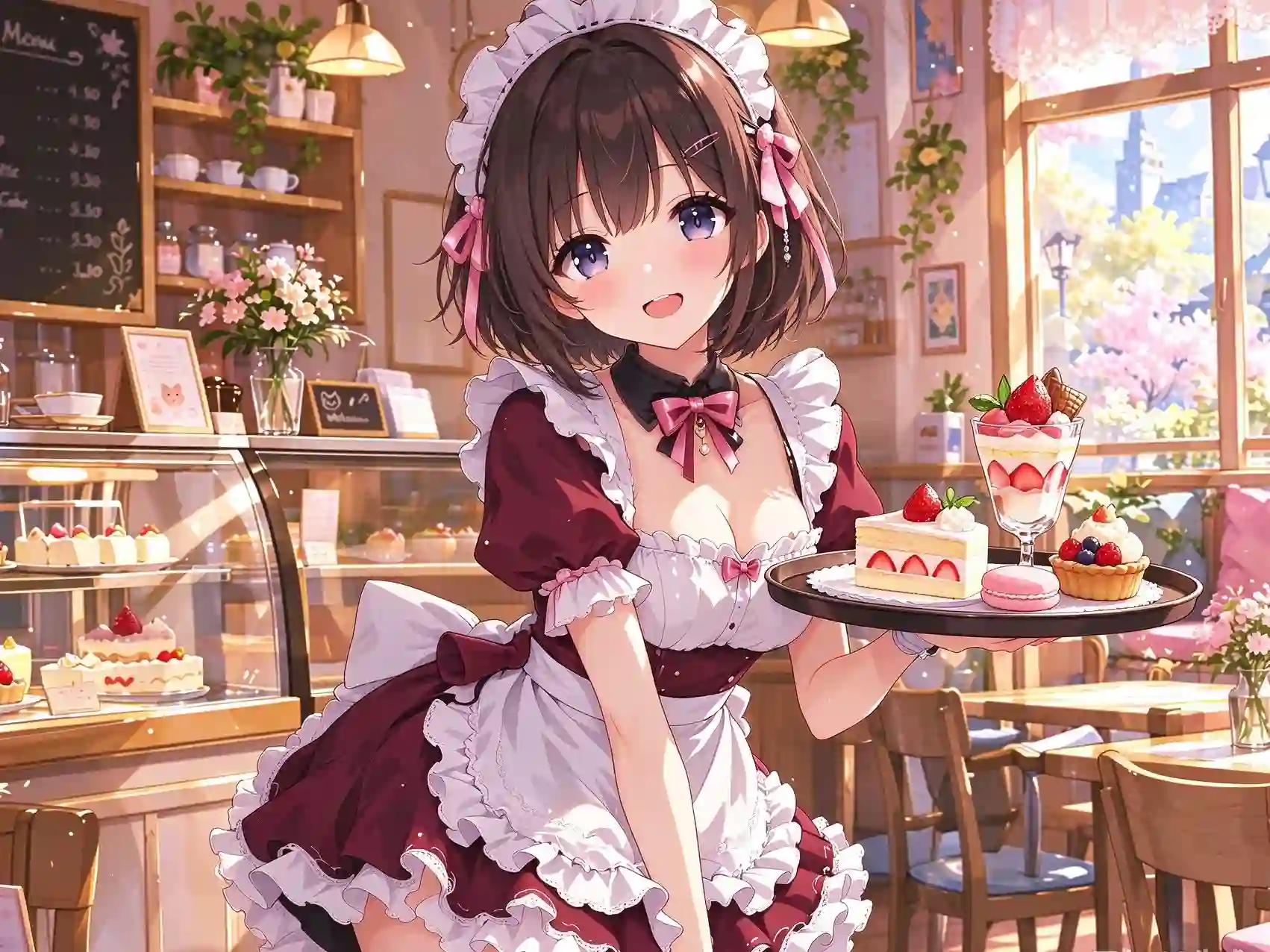
Anime-style character with hair and hem moving in a slow breeze

Anime and Illustration

A drawn character comes with a clear list of moving parts for image to video AI: hair, a hem, a slow blink. Any of them can move — give them an order and say what stays still, then check how well the generated clip holds the original artwork.

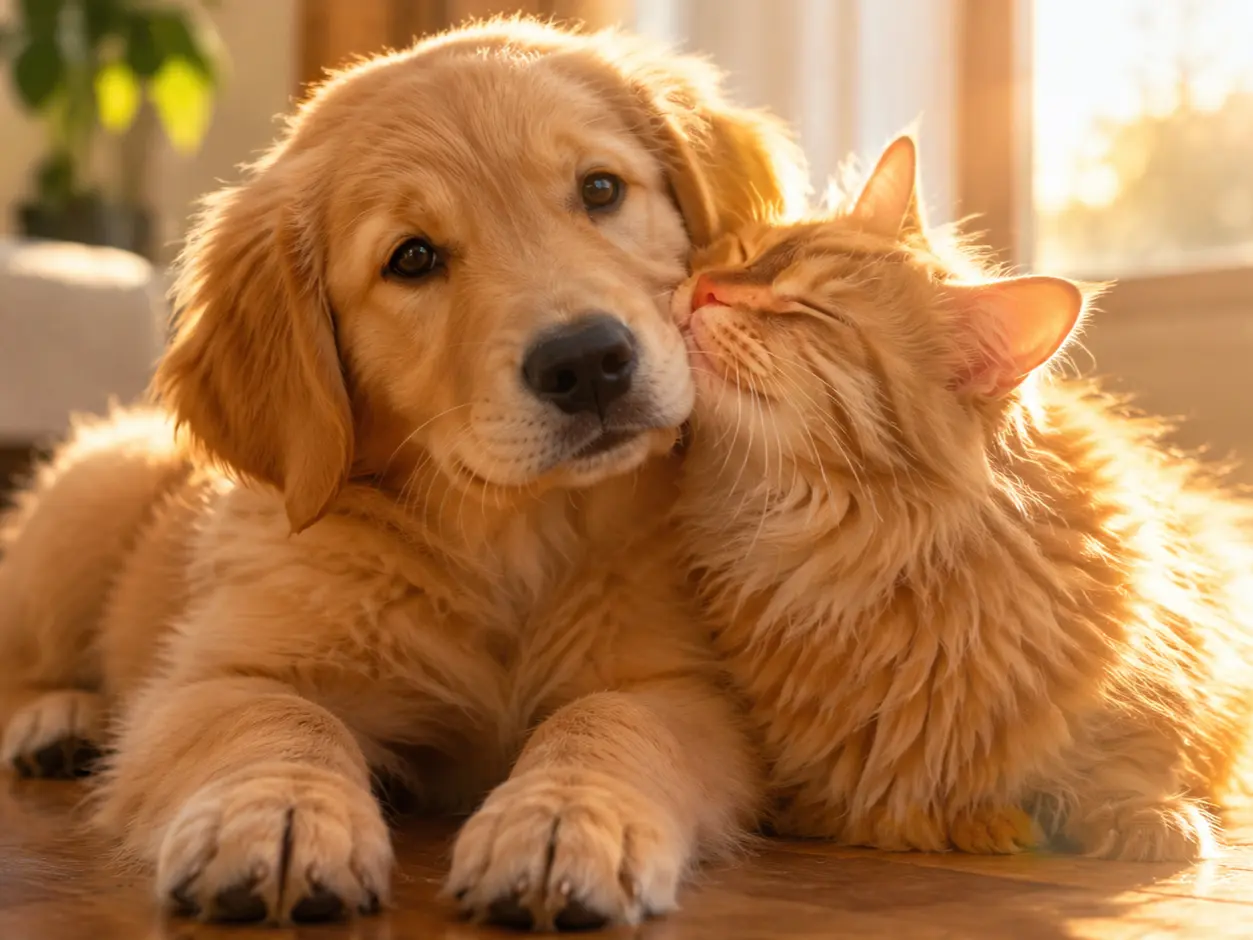
A dog in the yard, ears lifting as it turns its head

Pets and Animals

A dog in the yard, a cat on a sofa, a bird on a rail. An animal rarely sits completely still, so there is usually a small motion worth naming for image to video AI — a tail flick, an ear turning, a paw shifting. Name the animal and the move you would notice first.

Flat poster artwork, one layer sliding slowly over another

Posters and Flat Artwork

Posters, packaging, flat design pieces. Movement on flat artwork reads as a deliberate effect — a slow drift, a fade, a gentle scale shift — because there is no scene behind it to contradict. Dense small text and fine detail are the hardest for image to video AI to hold, so check the result before you use it.

Why Choose Our Image to Video AI

Six straight answers, no walkthrough — enough to decide whether this fits the way you already work.

Up to 30 Seconds a Clip

Image to video AI runs clips from 3 seconds to 30 — however long the shot needs. A blink takes 3; a few moves in a row can use all 30.

Fast Generation

Describe the motion, generate, and watch the clip back in the same sitting — the wait is short, so the time goes into deciding what should move.

Free

Image to video AI free to use. Upload a photo you already have and judge the result yourself — high quality, and the clip you actually wanted.

No Timeline to Learn

No keyframes, no layers, no scrubbing a playhead. The motion lives in one sentence, and image to video AI needs nothing placed by hand.

Nothing to Install

Image to video AI runs online in the browser. Open the page, upload a photo, and generate; nothing is installed first.

Secure & Private

Your photo is used only to make the clip you asked for. It is never used to train AI models, and it is never shared with anyone else.

What Our Customers Say

Three people who started from a photo they already had, and gave image to video AI one motion each.

★★★★★

I braced myself for another tool with a dozen settings. There were none — a sentence, a button, and a clip I could actually use. My first attempt was too vague, so I named the one thing I wanted to see move, and that was that.

review-jamesJames
★★★★★

The photo I had was not a studio shot — just something I took on a walk. I did not think it would survive being animated, and instead it kept moving on its own for a few more seconds.

review-ethanEthan
★★★★★

I use it for listings, where the still is all I have. A highlight travelling over the surface does more for a product than a second photo would, and the file arrives clean enough to hand straight to a client.

review-oliverOliver

Frequently Asked Questions

Start Creating with Image to Video AI

One photo, one sentence, one clip. Try image to video AI free with an image you already have.

Generate a Video From Your Photo

Explore More AI Video Tools

More preset routes from the same AI image to video generator — three end as a short clip, one as an edited still.

AI Twerk Generator

A single photo becomes a short twerking clip. The motion is preset, so there is nothing to describe and no prompt to write — upload the photo, generate, download. The shortest route when the move is already on the list.

Try Twerk Generator

AI French Kiss Generator

Bring two photos together into one short kiss clip. Both faces go in, the motion is handled for you, and the result downloads without a watermark. Nothing to fill in, nothing to line up, no editing step after.

Try Kiss Generator

AI Clothes Changer

Change the outfit in a photo without shooting it again. Pick the area to change, choose the look you want, and download the new version with the framing untouched — the light, the pose and the background stay as you shot them.

Try Clothes Changer

Video Face Swap

Take the face from a photo and put it into footage you already shot. Use this one when the footage exists and the face is what needs to change. The only card on this row that starts from a video rather than a still.

Try Video Face Swap