Video to Video AI: Transform Videos with AI

Video to video AI takes a clip you shot and rebuilds it without booking another shoot. Say what should change — the background, an object, the person, the outfit, the look — and a new version comes back, free to use.

1Upload a video
2Describe the change
0 / 20,000
4Video settings
2–15s
sec
Generate audio
On
Aspect ratio

Cost: 60 credits per second at 720p

5s generated

Your Video

Every motion, reimagined.

Upload a reference video, add a few reference images and describe the change — your restyled video will appear here.

Start with a reference video

Your recent videos are available in History for 24 hours.

Explore Video to Video AI Features

One prompt changes the scene, the people, the style or the length. A jacket, a street, an ending that did not exist — same box, same file.

One Prompt, Any Change

There is no timeline to scrub and no layers to stack — you type what you want changed, and video to video AI rebuilds the clip. The movement is not part of the description: the clip already carries the walk and the camera moves, and that is where the new version takes them from. Want a different gesture? That goes in the sentence too.

Try Video to Video AI Free
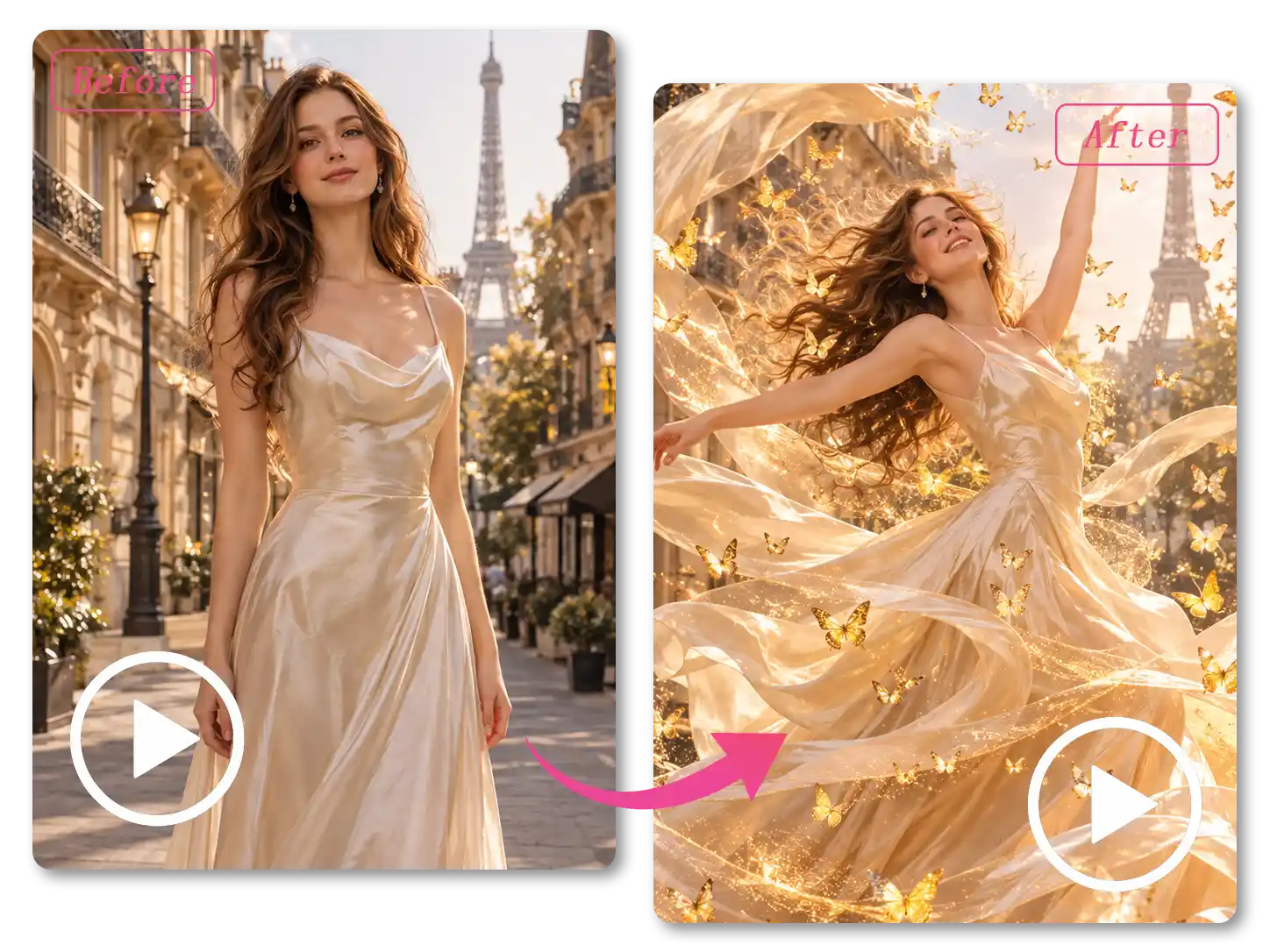
A single line of text in a prompt box above a video being rebuilt

Change Backgrounds, Remove Objects

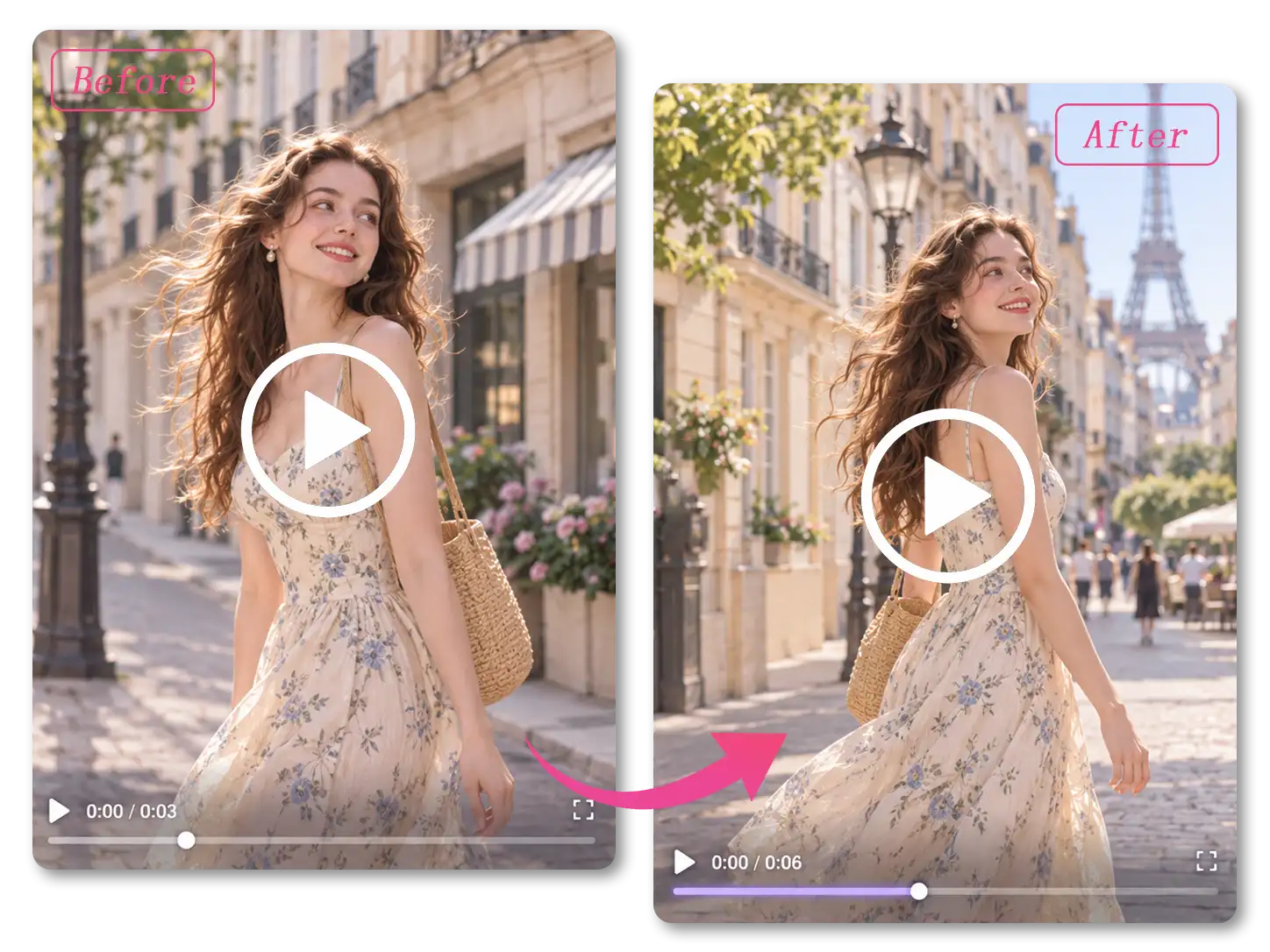
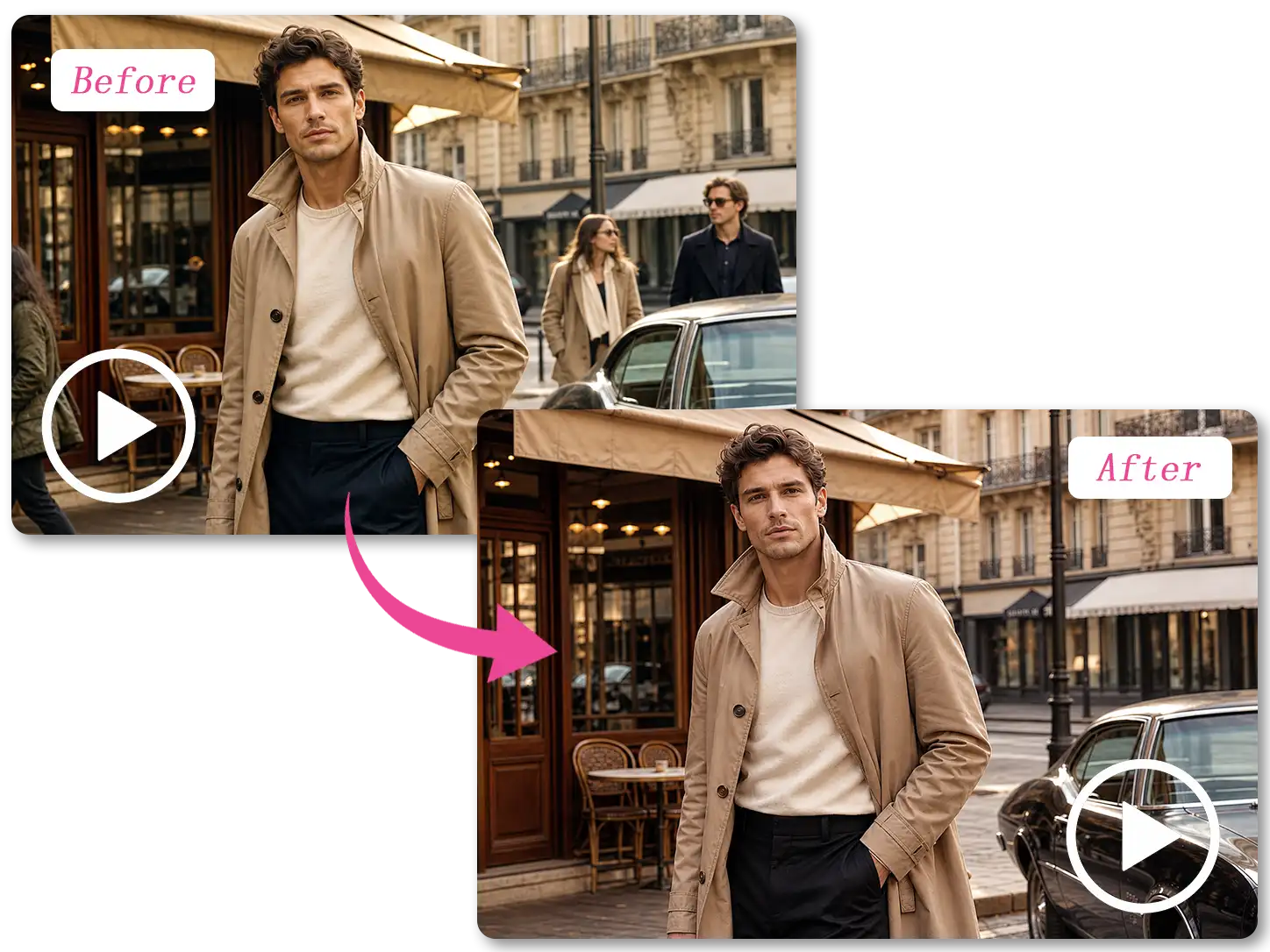
The two people walking behind him were not in the plan. Name what should be removed from the video, and the street behind him is rebuilt without them. Or describe a background that was never there — a studio wall, a coastline, the same street in 1990. Either way the subject is the one you uploaded; everything else is generated around him.

Change the Background
Before and after of a man in a trench coat, the passersby behind him gone

Replace People, Change Outfits

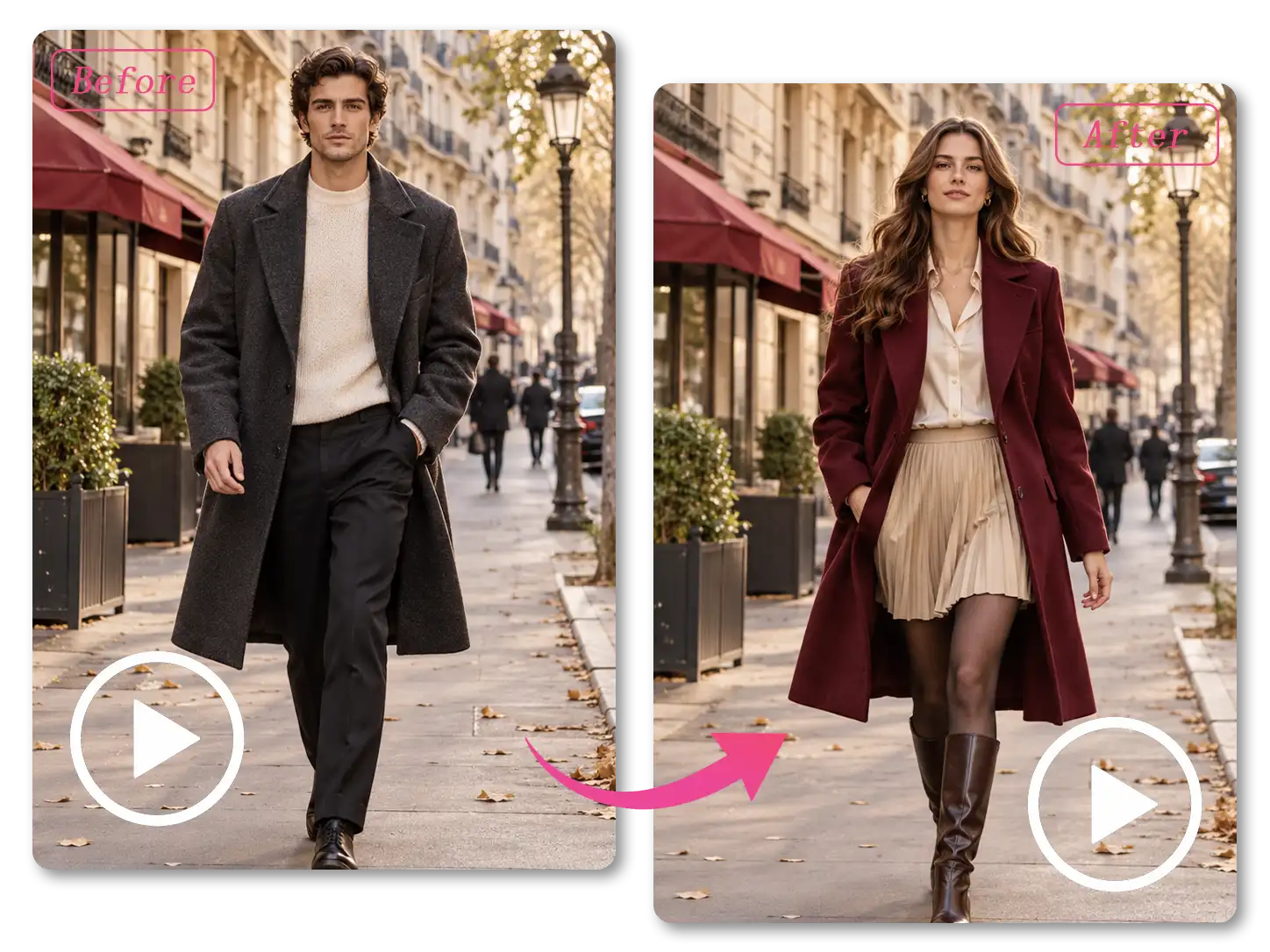
The person in the video and the outfit can be changed together, or one at a time. A different lead, a coat in another colour, a uniform that matches the new brand — describe it and video to video AI generates the clip again with that change inside it. Nothing is pasted over the original frame: the new person is generated as part of the shot.

Change the Person
A walking figure with both the person and the coat changed

Restyle the Whole Frame

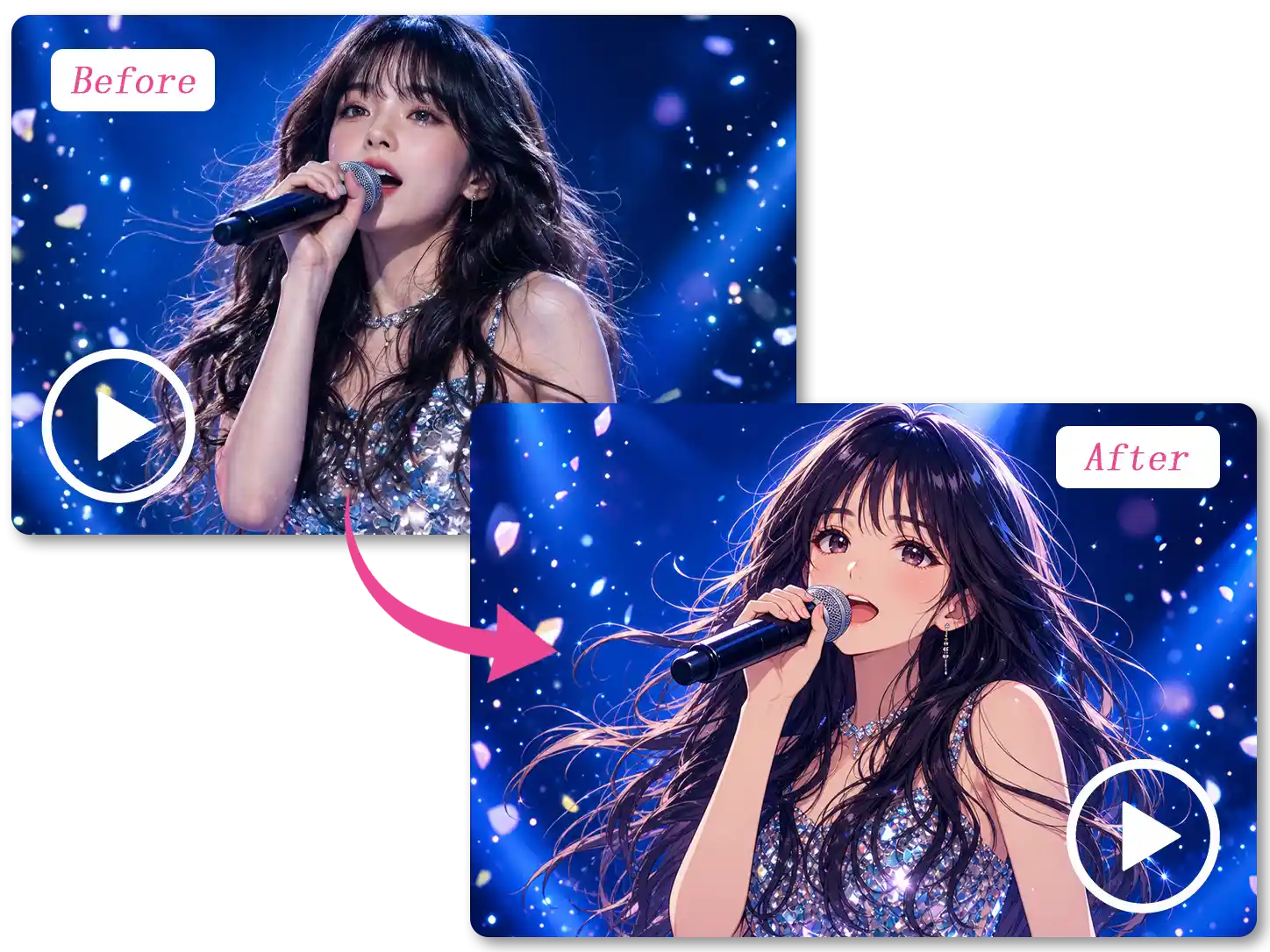
Name the look — anime, cartoon, oil paint, something shot on film — and every frame moves to it. This is not a filter on one corner: the whole clip is generated again in that style. People usually call this video style transfer. Here, an AI video restyle takes a single sentence.

Pick a Look
A city walk in live action and as anime, the same figures in both

Extend Videos with AI

Ask for a longer clip and video to video AI builds the extra seconds as new footage. The same box works as an AI video extender — the run is built again at the length you asked for, not stretched to reach it.

Extend the Clip
A clip running longer than the original, the walk carrying on

How to Change a Video with AI

Three steps from clip to new clip. Only one of them is typing, and none of them opens an editor.

1

Add Your Clip

One MP4 or MOV file, up to 100MB, from your phone or your desktop. Upload it once — the movement comes from your clip, and the prompt decides what else changes.

2

Say What to Change

There is one box to fill in, and video to video AI reads it as one instruction. A new character, a new outfit and a longer cut all start with the same sentence — you do not pick a mode first.

3

Get the New Video Back

The video to video AI generator hands the rebuilt clip back with your changes in it, ready to download. Only upload footage you have the right to edit.

What You Can Create with Video to Video AI

Six situations people bring to video to video AI. In each one the footage already exists and the shoot is behind them.

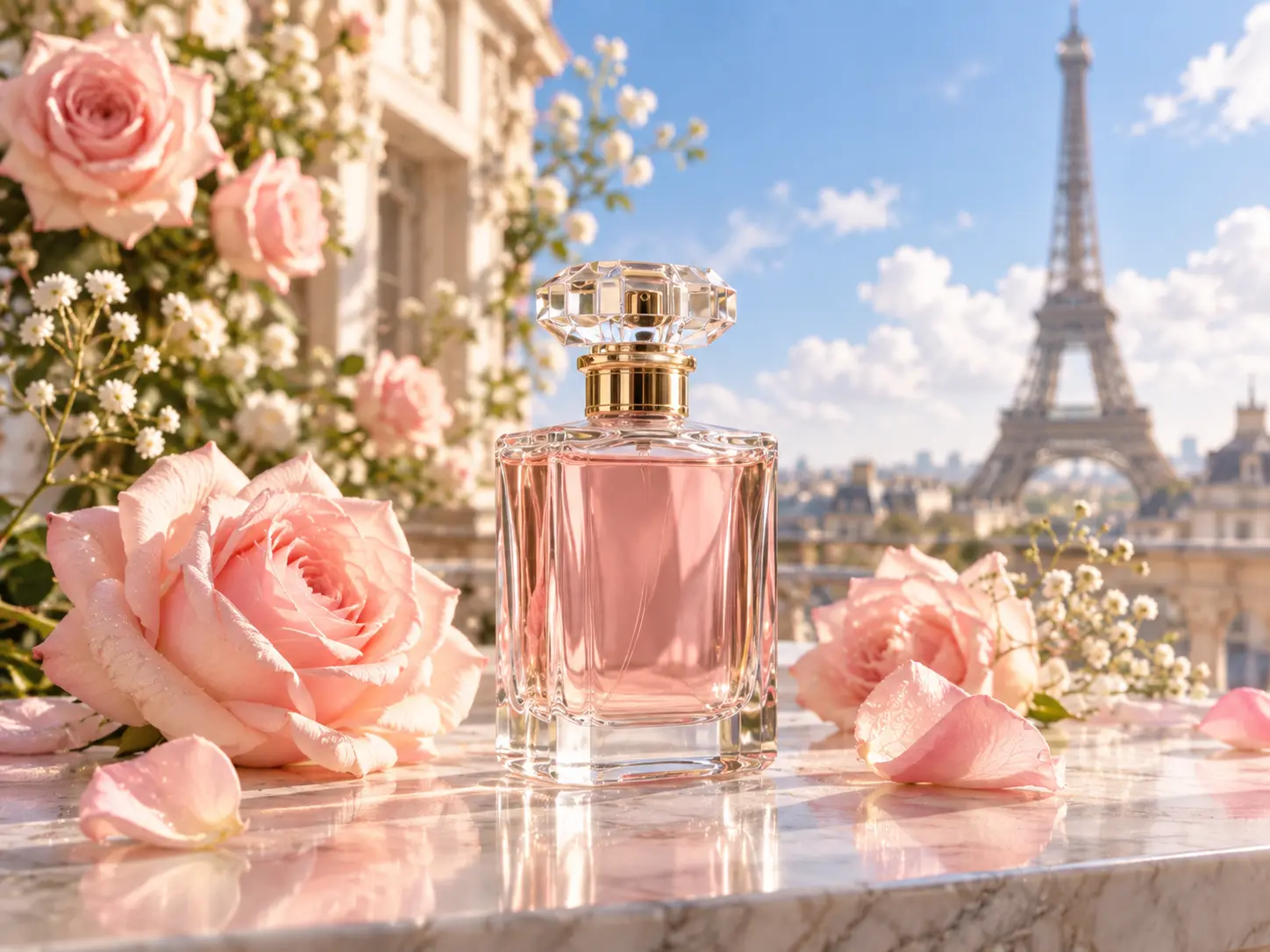
A product launch page with a short video playing beside the buy button

The Listing That Keeps Changing

A colourway drops, a bundle changes, the set in the photos stops matching what ships this month. That used to mean another studio booking. The clip exists; video to video AI only has to change what is behind the product.

Three regional campaign films playing on the same screen wall

One Shoot, Several Campaigns

A campaign can run a different lead in each market, or a different setting for each placement. Two versions used to mean two shoot days, two casts, two sets of releases. The performance holds; what changes is who is in it and where.

A retail lookbook shoot with racks of the new season's clothes

Last Season, Shot Again This Season

Lookbook footage only matches the range it was shot for. A palette shifts, a uniform is redesigned, a coat is discontinued, and a finished shoot is suddenly off-brand. What is left of it is a clip where only the clothes are wrong.

A music video set with a performer lit against a painted backdrop

A Music Video World Without a Set

A performance video is mostly a person in a room. The room is where the budget goes — the build, the location, the illustrator for the animated pass. A clip shot against a plain wall comes back as an anime sequence, and nobody builds the set.

A phone held vertically showing a short-form feed mid-scroll

The Cut That Fits the Platform

The beat that makes the clip lands just after the file ends. The turn stops short of the logo. Every platform wants a different length out of the same footage, and cutting around a missing beat is not cutting.

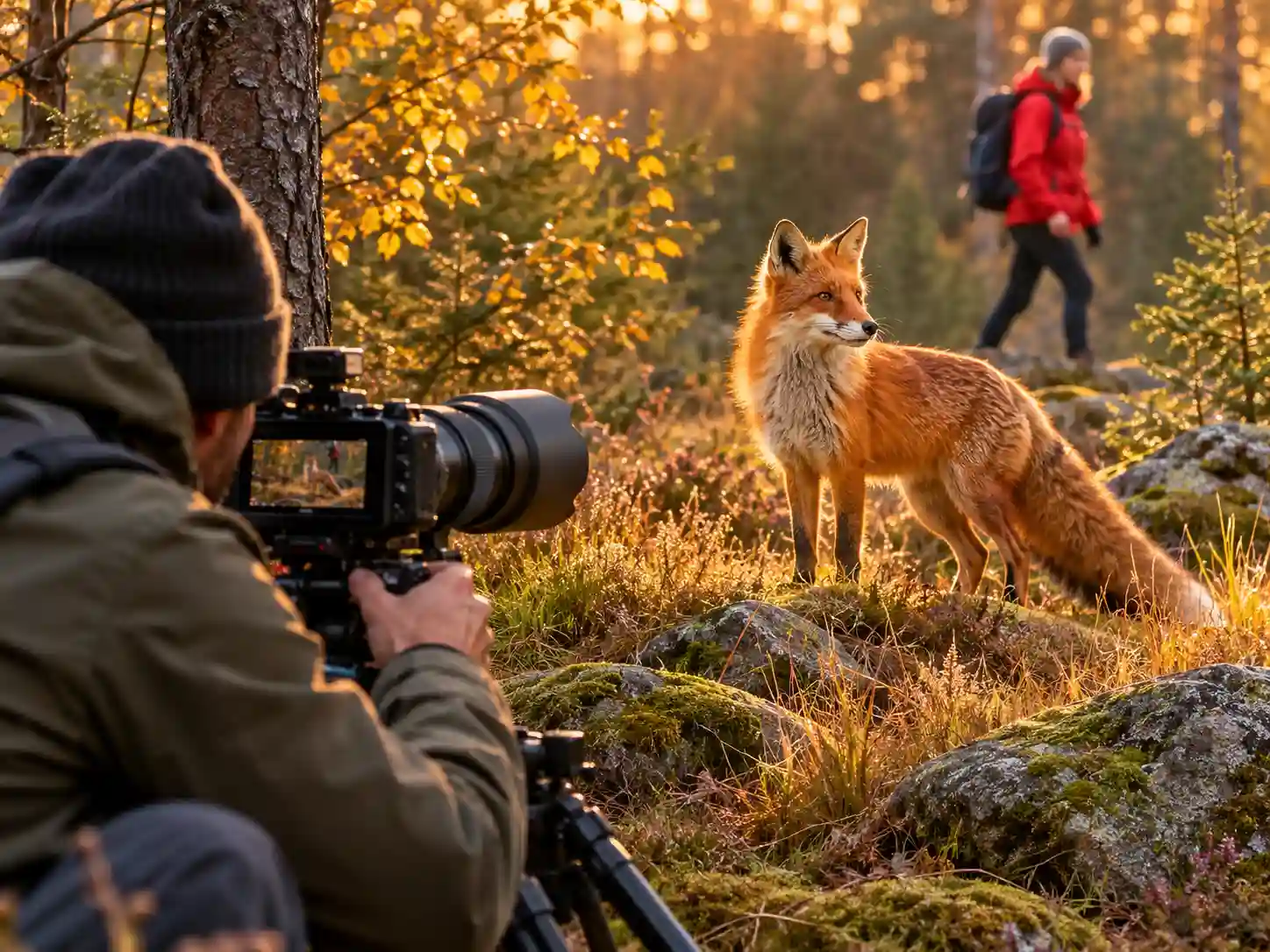
A wildlife photographer crouched at dusk waiting for the light

The Footage That Only Happened Once

Wildlife does not wait for a second take. Festivals happen once a year, and the light on a street lasts twenty minutes. A stranger steps behind the subject, a cable drops into the corner, and a take that cannot be repeated is written off — unless video to video AI can take the stranger out of it.

Why Choose This Video to Video AI

Reasons people come back to video to video AI. Six things the first clip does not tell you.

Free to Use on Any Clip

Free video to video AI starts with the file on your drive. You bring the clip, you add one sentence about what should change, and the tool does the rebuilding.

Runs Right in Your Browser

No app to install, no software waiting on an update. Open the page on a laptop or a phone, and the video to video AI generator does the rest.

No Watermark, Anywhere in the Frame

Video to video AI stamps nothing on the result: no logo, no corner mark, no watermark across the picture. The file you download is clean, edge to edge.

Nothing to Learn First

With video to video AI there is no track to mask, no grade to match, no settings to work through. The first clip you make and the five hundredth are the same three steps.

Your Footage Stays Private

Privacy applies to the whole process: your clip is used to build the edit you asked for and is not used to train AI models. It stays yours from upload to download.

No Second Shoot

A reshoot is the location again, the crew again, and the one person whose calendar made the whole thing possible. Most footage dies in a folder for that reason.

What Our Customers Say

Hear from people who handed their footage to video to video AI and liked what came back.

★★★★★

I had a product clip with a boring gray background. Typed one line about a wooden studio desk, and the video to video AI result kept the movement of the shot — only the room changed. It took less time than finding the right stock footage.

review-noraNora
★★★★★

The removal feature is the one I did not expect to use as much as I do. Stray pedestrians, parked cars, a bin that ruins the corner of a take that is otherwise fine — named it, and it is gone.

review-marcusMarcus
★★★★★

We had the wrong model in an otherwise finished campaign clip. Replaced her with the right one and the walk and the timing came back with her — no reshoot week.

review-leahLeah

Video to Video AI — Frequently Asked Questions

Change Your Video Now

You already shot the clip. One sentence is all that is missing. Upload it, name the change, and the video to video AI generator hands back a new video — no watermark, free to use, before the idea goes cold.

Try Video to Video AI Free

Explore More AI Video Tools

More from the same toolbox — for still photos, faces and outfits instead of clips.